Pomo on the lock screen, Dynamic Island and Android status bar
A timer you can only check by picking up and opening your phone isn’t much use. Pomo puts the running session where you’d look anyway: the lock screen and the Dynamic Island on iPhone, the status bar and lock screen on Android. All of it is free.
iPhone: the Live Activity
Start a focus and a Live Activity appears on the lock screen. From top to bottom it shows:
- the phase in capitals (FOCUS, SHORT BREAK, LONG BREAK), with your label on the right if the session has one;
- the time left, large;
- a progress bar from the start of the phase to its end, orange during a focus and muted during a break.
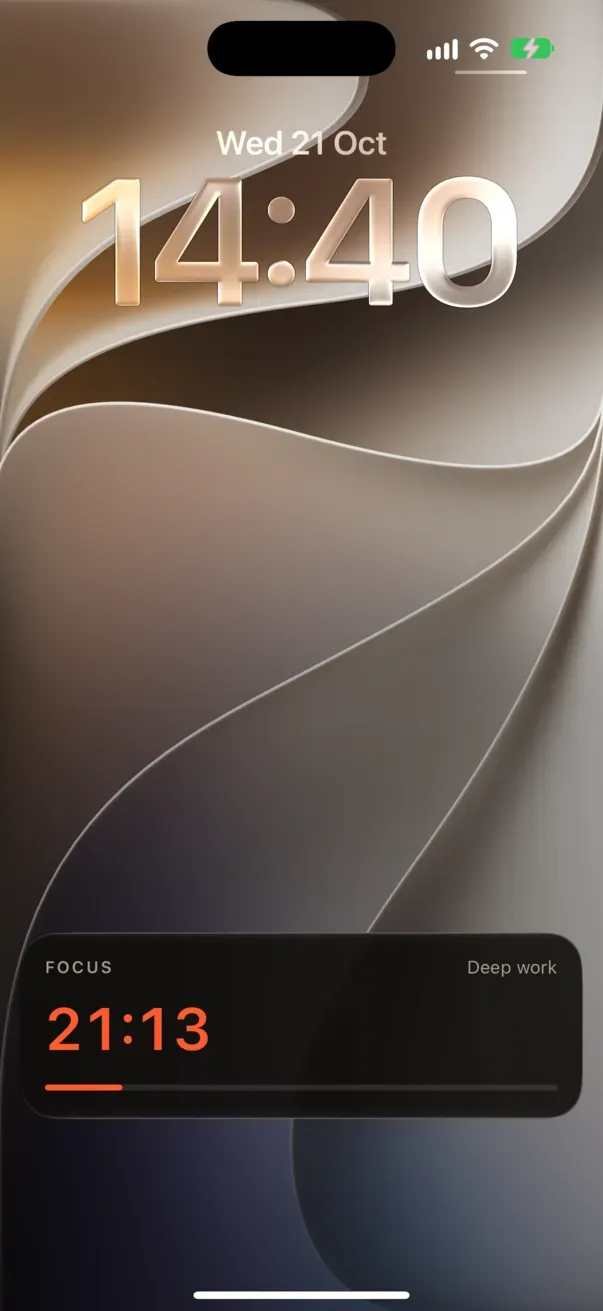
A focus on the lock screen with the alarm off (iPhone simulator, iOS 27).
iOS ticks the countdown and the bar itself, so they stay live even if Pomo isn’t running. One detail you’d only notice side by side: iOS normally rounds a countdown’s seconds up, while Pomo’s timer screen and the watch round down. Pomo counts the Live Activity down to one second before the real end, so the lock screen, the Dynamic Island and your wrist all flip to the next second together.
On an iPhone with an always-on display, the dimmed lock screen shows the minutes with dashes where the seconds go, for example 21:–. That’s iOS, not Pomo: wake the screen and the seconds are back.
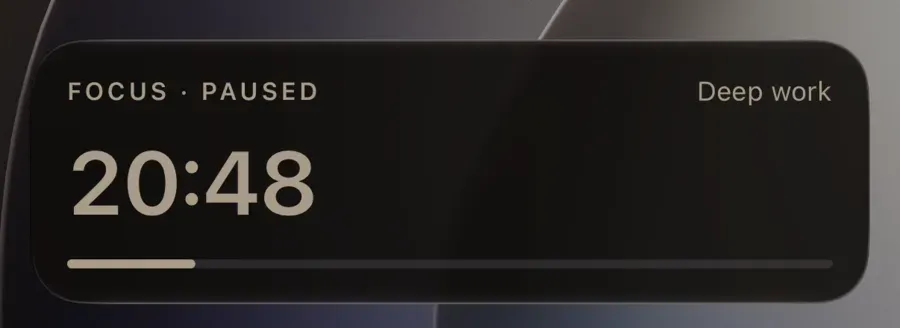
Paused
Pause, and the Live Activity stays. The headline becomes FOCUS · PAUSED, the time freezes at what was left, in muted ink, and the bar stops. Resume picks it up from there. (Before version 1.2, a paused session disappeared from the lock screen.)
Finished
When a phase ends and the activity has nothing newer to show, it reads FOCUS COMPLETE with “Well held.” under it, or BREAK OVER with “Back to it”.
The Dynamic Island
On iPhones with a Dynamic Island, the session also lives at the top of the screen while you use other apps:
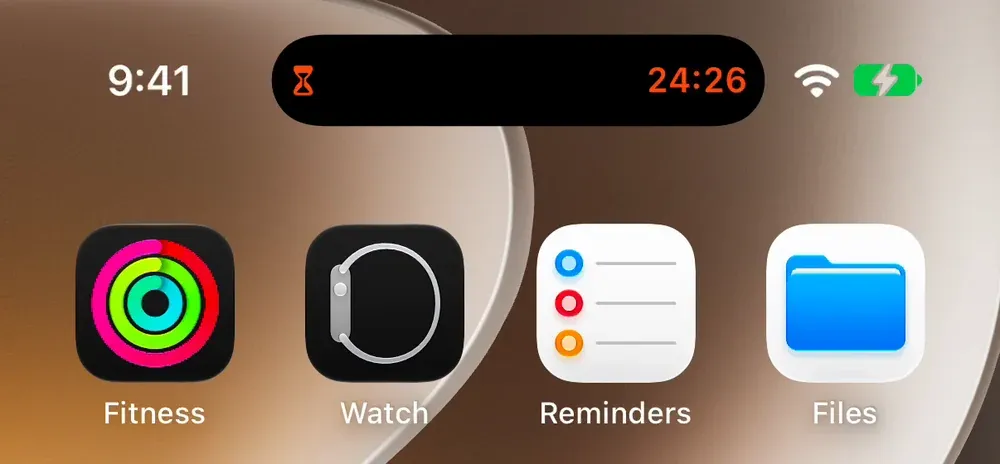
The compact Island during a focus, over the home screen (iPhone simulator, iOS 27).
| View | What it shows |
|---|---|
| Compact | An hourglass for a focus, a cup for a break, a pause symbol when paused, a check when done; the countdown on the right |
| Minimal (when another app shares the Island) | The symbol alone |
| Expanded (press and hold) | The symbol and headline, the countdown, the progress bar and your label |
Pomo uses a shaped symbol rather than a dot on purpose: a plain dot next to the front camera looks like the microphone-in-use indicator.
There are no buttons on the Live Activity or in the Island. Pause, End and Skip happen in the app or on your watch.
When the alarm is on (iOS 26)
Pomo has a setting under Alerts called Ring at session end: sound, vibration and a full-screen alert, even if the app is closed. It’s on by default. On iOS it uses AlarmKit, Apple’s alarm system, and that changes the lock screen slightly: the alarm’s own countdown takes the Live Activity’s place. It shows the label (or the phase), the countdown and the bar, and · PAUSED after the title when you pause. When time is up the system alarm rings. On the lock screen it takes the whole screen: Session complete (or Break over), the time, Pomo’s name and slide to stop. It doesn’t show the “complete” screen, because the alarm is the ending.
iOS asks once whether Pomo may use alarms. If you said no, the switch is in the Settings app under Apps, then Pomo, then Alarms.
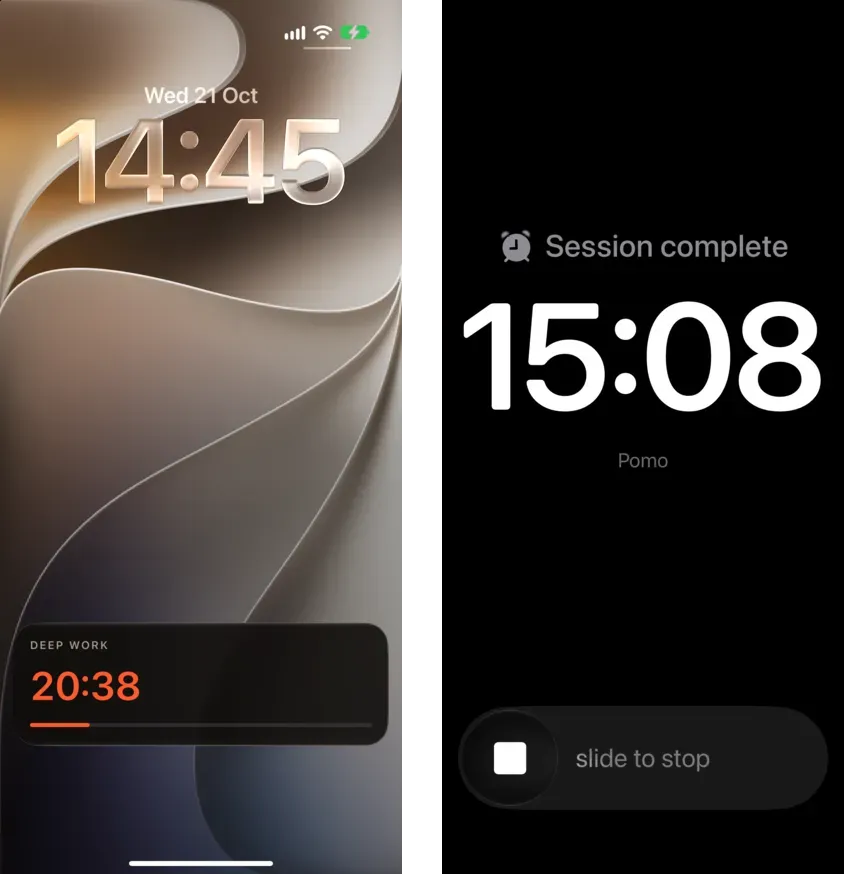
The alarm’s countdown during a focus, and the alarm when the focus ends (iPhone simulator, iOS 27).
Turn Ring at session end off and you get the regular Live Activity described above, with a quiet notification at the end instead of an alarm.
Android 16: the status bar chip
On Android 16, Pomo’s session notification is promoted to a Live Update. The remaining time sits in a chip in the status bar, for example 24:59, or 1:05:00 for a long block, so it’s visible over other apps. The notification itself, in the shade and on the lock screen, shows the phase, your label, the time left and a progress bar, with a Pause button.

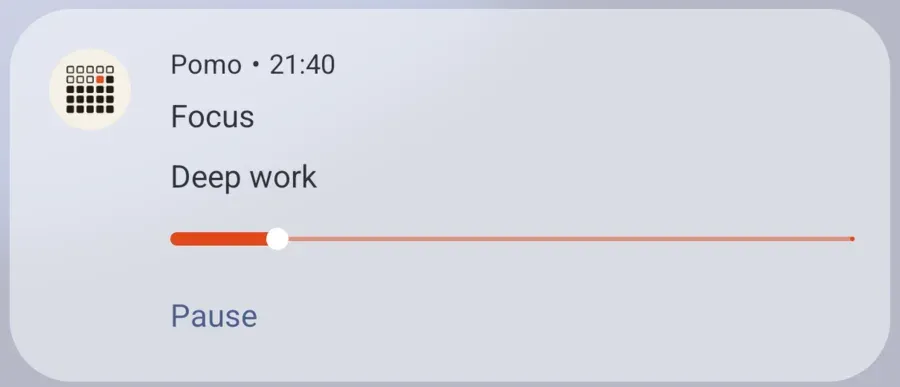
The status-bar chip and the Live Update in the shade (Android 16 emulator).
Android leaves the chip out while Pomo itself is on screen, and the floating window (below) counts as on screen. With Float the timer when you leave on, which is the default, you’ll see the window rather than the chip. Close the window, or switch that setting off, and the chip appears.
Some phones let you switch live notifications off. If yours won’t promote the notification, you get the regular one described next.
Older Android
On Android 15 and earlier, Pomo shows an ongoing notification with a running countdown and a Pause button, or Resume while paused (it then reads Paused · 12:40, or whatever is left). End and Skip aren’t offered there, so a session can’t be thrown away from the notification shade. With strict mode on, the Pause button is hidden during a focus, the same as in the app.
Android also has the floating window: leave the app mid-session and the timer keeps going in a small picture-in-picture window over whatever you open next. The Time layout is free; Grid and Grid + time are Pro. You can switch the automatic float off with Float the timer when you leave in Session settings.
If nothing shows up
On iPhone, check that Live Activities are allowed for Pomo in Settings. On either platform, if notifications are off, the timer screen says so in a banner (“You won’t be alerted when a session ends”) with a button to turn them on.
The wrist side of the same session is in the Apple Watch and Wear OS guides.