Pomodoro on Wear OS: running Pomo from a Galaxy or Pixel Watch
Pomo’s Wear OS app is a remote for the timer on your phone. The phone keeps the session, the ledger and the alarm; the watch shows the countdown and sends your taps back. That split decides most of what follows, including what still works when the phone app has been swiped away.
What you need
- An Android phone with Pomo installed. The watch app is a companion and won’t run on its own.
- A Wear OS watch on Android 8.0 (API level 26) or later, which covers the Galaxy Watch and Pixel Watch lines.
- Nothing extra to pay. The watch app isn’t part of Pro.
The watch app ships inside the same Play listing as the phone app. Install Pomo on the phone first; Google’s own instructions then have you finish the install from the prompt that appears on the watch, or from the “Available on more devices” section of the phone’s Play listing (Google Play Help).
The first time you open it
If you haven’t finished setting up Pomo on the phone, the watch says Set up on your phone and waits. Once the phone app is set up, the watch shows the same face you use on the phone, on a black background so the screen stays dark around it. Grid is the default. Arc and Tide carry over if you use them on the phone with Pro; Digits shows as plain numbers.
You might instead see a single line such as Exact alarms are off with Open Pomo on your phone under it. That’s deliberate. A watch can’t deliver the end of a session by itself, the phone does, so if the phone can’t post a notification or ring its alarm, the watch holds back its controls rather than start a session nobody will be told has ended. The line names the exact permission that’s missing on the phone. Other permissions (calendar, app blocking) never block the watch.
Starting a session
Before you tap Begin, there’s a Label pill under the face. Tap it for None plus the labels you’ve saved on the phone (up to 12). New labels are added on the phone; the list says so at the bottom.
The length comes from the phone. Whatever focus the phone has armed, 25 minutes or the 52 you dragged it to this morning, is what Begin starts. The Wear app has no length control of its own, so if you want something different for this one session, set it on the phone first.
Tap Begin and the face starts burning. On the watch face itself, Pomo keeps an ongoing activity, which you tap to jump back into the app. How much of it shows is up to the watch face: faces that draw an ongoing activity’s status show FOCUS · 24:13 while you work and Paused with the time left when you stop; others, including the emulator’s default face and Samsung’s faces, show only Pomo’s icon. Pomo has no Tile and no complication on Wear OS today.
The controls, phase by phase
| While | You get |
|---|---|
| A focus is running | Pause and End |
| A break is running | Skip, +5 and Pause |
| Anything is paused | Resume and End |
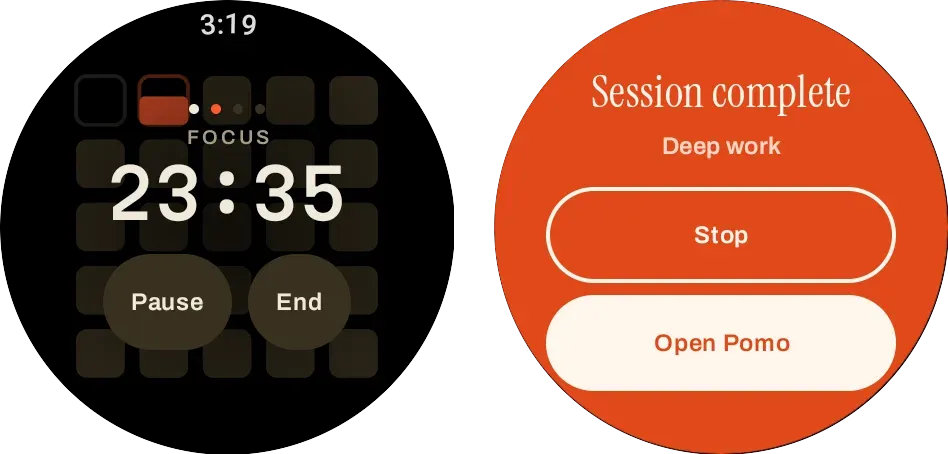
A running focus, and the alert when it ends (Wear OS 6.1 emulator, large round).
End and Skip both ask twice. The first tap swaps the buttons for Keep and the action, so a sleeve brushing the screen can’t throw away the rest of a session. If strict mode is on in the phone’s Focus shield settings, ending a focus early becomes Keep and Hold: press and hold to let it go.
When the phone app is closed
This is the part most watch timers get wrong, and it’s where Pomo’s split pays off.
The watch counts down from the session’s end time, not from a stream of updates, so it keeps ticking correctly when it can’t hear from the phone at all. Your taps travel to the phone two ways at once, a fast message and a stored item that syncs whenever the phone is next reachable, and each carries a token so the phone applies it exactly once.
On the phone, Begin, Pause, Resume, End and Skip are applied even when the Pomo app isn’t running. The phone updates the session, moves or cancels its alarm, refreshes its own notification and tells the watch. You can work a whole set from your wrist with the phone app swiped away. The one exception is +5: adding time to a break waits until you next open Pomo on the phone.
If the countdown on the watch reaches zero and the phone hasn’t said anything, the watch shows Time’s up with Open Pomo on your phone, and asks the phone to catch up.
At the end of a session
When the phone’s alarm rings (Settings, then Alerts, then Ring at session end, which is on by default), the watch turns its screen on with a full-screen alert in Pomo’s orange that reads Session complete (or Break over) above your label, and two buttons: Stop and Open Pomo. It vibrates in the pattern you chose on the phone and keeps going until you answer. It doesn’t play a sound; the phone does that. Stop it on either device and both go quiet. If nobody answers, the phone stops ringing after two minutes and the watch stops with it.
This works with the watch app closed too. The alert is its own screen, not part of the app you had open.
What it doesn’t do
- Change the length from the wrist. Set it on the phone.
- Add a new label from the wrist.
- Run without the phone app installed and set up.
- Show a Tile or a watch-face complication. The ongoing activity chip is the glanceable surface.
If you also use an iPhone, the Apple Watch guide covers the differences there: the Digital Crown sets the length, and breaks have no Pause.