Pomodoro on Apple Watch: Begin, pause and end from your wrist
The Apple Watch app is a remote for Pomo on your iPhone. The iPhone owns the session, the ledger and the alarm; the watch draws the face, takes your taps and passes them on. It’s free, and it installs with the iPhone app.
Getting it on the watch
Pomo needs iOS 26 on the iPhone, and the watch app needs watchOS 26.4. By default your watch installs the watch version of any iPhone app that has one. If you’ve turned that off, open the Watch app on your iPhone, go to My Watch, scroll to Available Apps and tap Install next to Pomo (Apple Watch User Guide).
Open it once the iPhone app is set up. Until then it says Set up on your phone.
Setting the length
When nothing is running, the watch shows the face with the length under it, for example 25 min. Turn the Digital Crown to change it, anywhere from 1 to 180 minutes. Each turn is sent to the iPhone as well, so the length you dial in is the one the phone has armed. Pick it on either device and the other agrees.
The face is whichever one you use on the iPhone: Grid by default, or Arc or Tide if you’ve picked them with Pro. In Grid, the block reshapes as you turn the Crown, one square per minute, exactly as it does on the phone. A 45-minute focus is nine squares across and five down on both.
Labels
Above Begin there’s a label pill. Tap it to choose None or one of the labels you’ve saved on the iPhone, up to 12. You can’t type a new label on the watch; the picker says to add them on the phone. The label you pick goes with the Begin, so the session is filed under it in the ledger even if the iPhone app wasn’t running when you started.
Controls
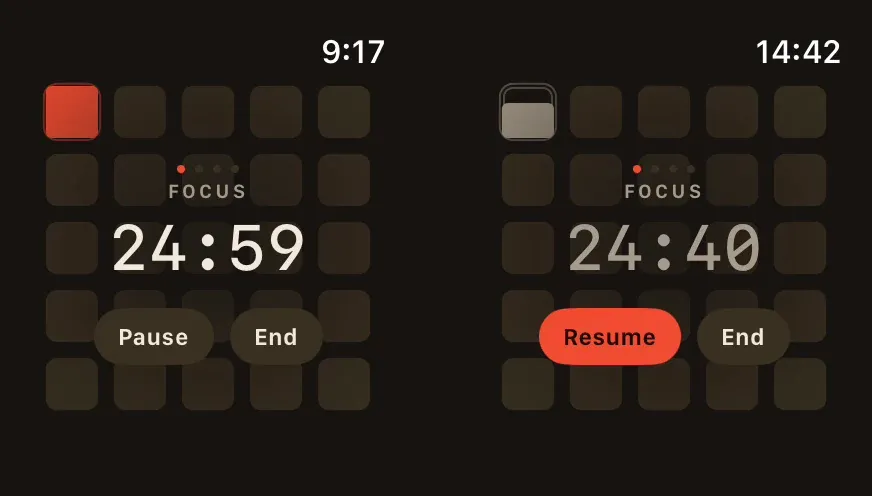
Running, then paused. The burning square goes muted when you pause, and Resume takes the orange (Apple Watch simulator, watchOS 27).
- Begin when nothing is running.
- Pause and End during a focus.
- Skip and +5 during a break. There’s no Pause on a break on the watch.
- Resume and End while paused.
Every press gives a tap on the wrist, and if the watch app is open when a phase changes, you get the stronger notification tap.
End and Skip each take two taps. The first swaps the buttons for Keep and the action. In the app’s own words, a stray tap mustn’t cut the rest short, and a wrist is exactly where stray taps happen. If strict mode is on (in the iPhone’s Focus shield settings), ending a focus early is a press-and-hold of just under a second instead.
When the iPhone app isn’t open
If the iPhone is in reach, your tap gets there straight away. If it isn’t, the watch hands the command to iOS, which delivers it once the phone is reachable and wakes Pomo on the iPhone in the background to apply it. The countdown on your wrist doesn’t depend on any of this: it runs from the session’s end time, so it stays right while the two catch up.
In the Smart Stack
The watch app adds a card to the Smart Stack. With nothing running it says Start a focus; during a session it shows the phase and the countdown, and Paused when you’ve paused. iOS also mirrors the iPhone’s Live Activity into the Smart Stack on its own. When that’s showing, Pomo lowers its own card so you don’t get the same session twice.
At the end of a session
The watch app doesn’t ring by itself. With Ring at session end on in the iPhone’s Alerts settings (it is by default), Pomo schedules a system alarm on the iPhone, and iOS shows that alarm on your wrist too. Tap Stop on the watch and the alarm stops on both.
This used to misbehave with the watch app open: the alarm would appear for about a second and vanish, because the watch’s routine catch-up asked the iPhone to re-sync, and the re-sync cleared alarms, including the one ringing. Since August 2026 an alarm that’s already ringing is never cleared that way.
The lock screen and Dynamic Island side of the same session is in the lock screen guide. If you have an Android phone and a Galaxy or Pixel Watch, see the Wear OS guide.