Block distracting apps only while you focus
Most app blockers run on a schedule: 9 to 5, or all evening. Pomo’s runs on the session. The apps you pick are out of reach while a focus is running and back the moment a break starts, so the break is a real break and the block never outlives the work it was protecting.
The focus shield is part of Pomo Pro. You’ll find it in Settings under Focus shield, where each guard is its own switch and all of them start off.
When the shield is up
Only while a focus phase is running. It comes down:
- at the start of every break, short or long;
- when you pause;
- when you end the session or it finishes;
- when you switch the guard off, or if Pro lapses.
You never have to remember to unblock anything, and Pomo can’t leave you locked out of your messages after the session you set it up for is over.
On iPhone: Screen Time
Turn on Block distracting apps and iOS asks you to give Pomo Screen Time access. Then Apps to block opens Apple’s own picker, where you choose apps or whole categories.
Pomo never sees the list itself. iOS hands it back as opaque tokens, and Pomo only learns how many items you picked, which is why the row says “3 apps” rather than their names. As the setting itself puts it, your list never leaves the device.
During a focus, opening a blocked app shows Pomo’s shield instead: the Grid mark, Focus in progress, a line saying the app is set aside while you focus and will be there when the session ends, and a Back to focus button.
Two things to know:
- Apple’s picker also lets you choose websites, and they count towards the number on the row, but Pomo only shields apps and app categories. A site you picked stays reachable in Safari.
- The shield is lifted at the session’s end by a small system extension, so it comes down on time even if Pomo itself has been closed.
On Android: a wall on top
Android has no Screen Time equivalent for apps to use, so Pomo does it differently. It needs two permissions, Usage access (to see which app is in front) and Display over other apps (to cover it). While a focus runs, a foreground service checks the front app once a second; when it’s one you’ve chosen, Pomo draws a full-screen wall over it with the same words as on iPhone. Back to focus takes you to Pomo. A notification, Focus shield on, stays up for as long as the service does.
You pick apps from a searchable list of what’s installed. Pomo doesn’t use an accessibility service for any of this.
Android also gets a second guard iPhone doesn’t: Do Not Disturb. It switches the phone to Priority mode for the focus and puts back whatever setting you had before when the focus ends. It needs Do Not Disturb access. iOS doesn’t let an app turn on a Focus mode by itself, so the switch isn’t offered there.
Why there’s no “unbreakable” mode
On both systems, you’re the one who granted the permission, and you can take it back in Settings at any time. An app that promises a lock you can’t undo is either counting on you not knowing that, or asking for device-management powers a focus timer has no business holding. Pomo doesn’t pretend.
What it does instead is make giving up slower than a reflex.
Strict mode
Strict mode changes two things about a running focus:
- It can’t be paused. The Pause button is greyed out, and the Pause action disappears from the Android notification and the floating window. A pause sent from a watch is refused as well.
- Ending early takes a deliberate press-and-hold. On the phone you hold the End button for one and a half seconds; on Apple Watch, just under one; on Wear OS, a long press.
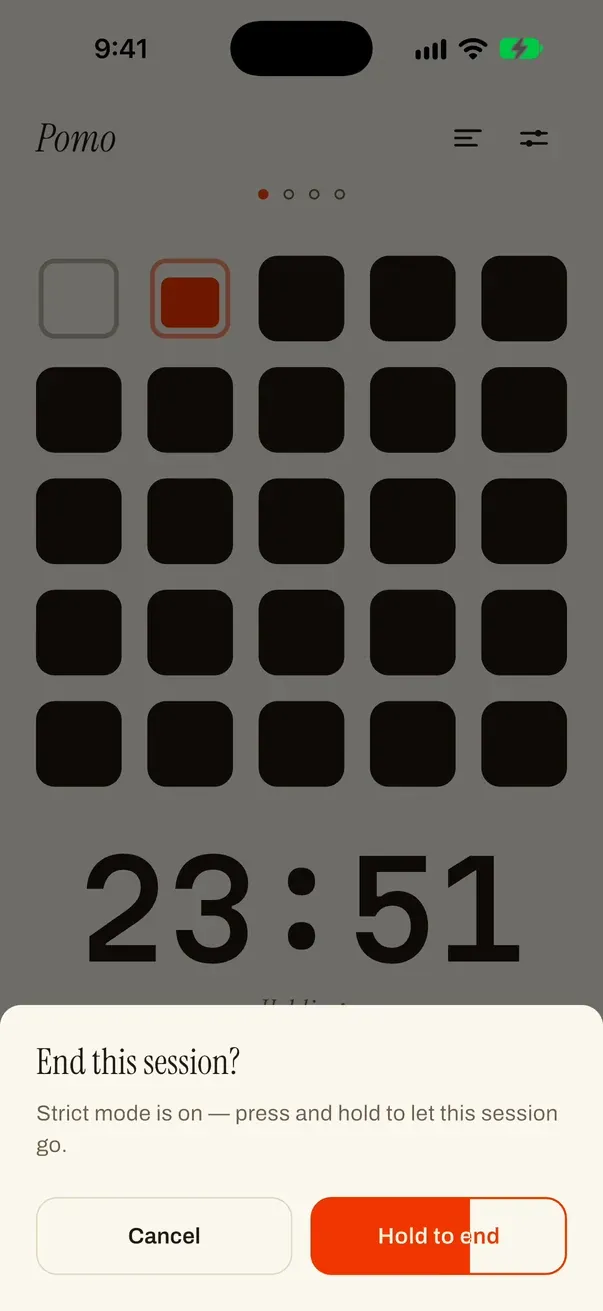
Ending a focus early in strict mode: the button fills while you hold it (iPhone simulator).
Breaks are unaffected: you can still skip or extend them as normal. Strict mode works without the app block, so if all you need is to stop yourself pausing “for a second”, it’s enough on its own.
A setup that holds up
If you’re starting out, try Block distracting apps with three or four apps that reliably cost you a session, and leave strict mode off for a week. You’ll find out quickly whether the wall alone is enough. If you catch yourself pausing to get around it, that’s what strict mode is for.
The rest of the session, on your lock screen and your wrist, is covered in the lock screen guide.